Cue Computer
Give your agent its own cloud computer, then look at its files, terminal, and code editor from the web.
Cue Computer is a private cloud computer for one agent on Cue OS. Cue, the agent, uses it to run commands, keep files, and build things. You can open the same computer from the web to see its files, use its terminal, or edit code.
What you can do
- Give a new agent its own computer when you create it.
- Browse the agent's files and open a terminal on its computer.
- Edit files in a code editor that runs in your browser.
- See every computer on your account, and pause, resume, or remove one.
- Use Cue CLI inside the computer; it is already installed there.
On the web
Create an agent with a computer
- Sign in at cueos.ai/app.
- Choose New, then Agent, and type a name.
- Open Advanced. Start its cloud computer now is off by default; turn it on. Install OpenClaw then appears; turn it on only if you want the OpenClaw engine.
- Choose Create.
- Wait while the computer gets ready. The steps are Prepare computer, Set up Cue CLI, Connect agent, and Load workspace. If you see Setup failed, read the message, then choose Retry.
If no computer slot is available, the app creates the agent on Cue's servers and explains the fallback.
Open the computer
- Open Chat, then Agents, and choose your agent.
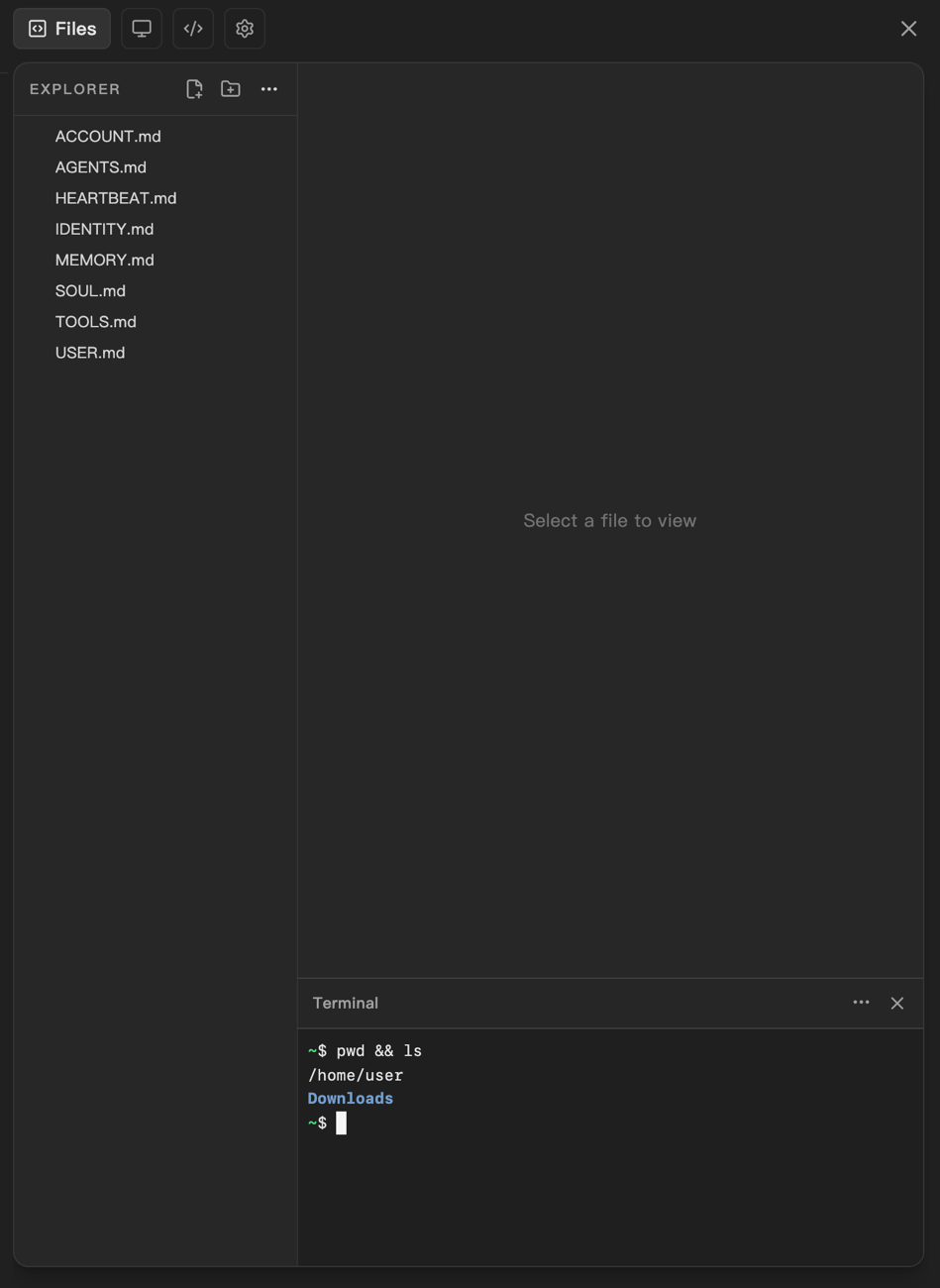
- Choose Open Workspace. A panel opens with four buttons across the top: Files, the desktop view, the code view, and Settings.
- Files lists the files in the agent's workspace. Choose a file to view it.
- To open a terminal, choose More options (the three dots next to EXPLORER), then Terminal. The terminal starts in
/home/user.
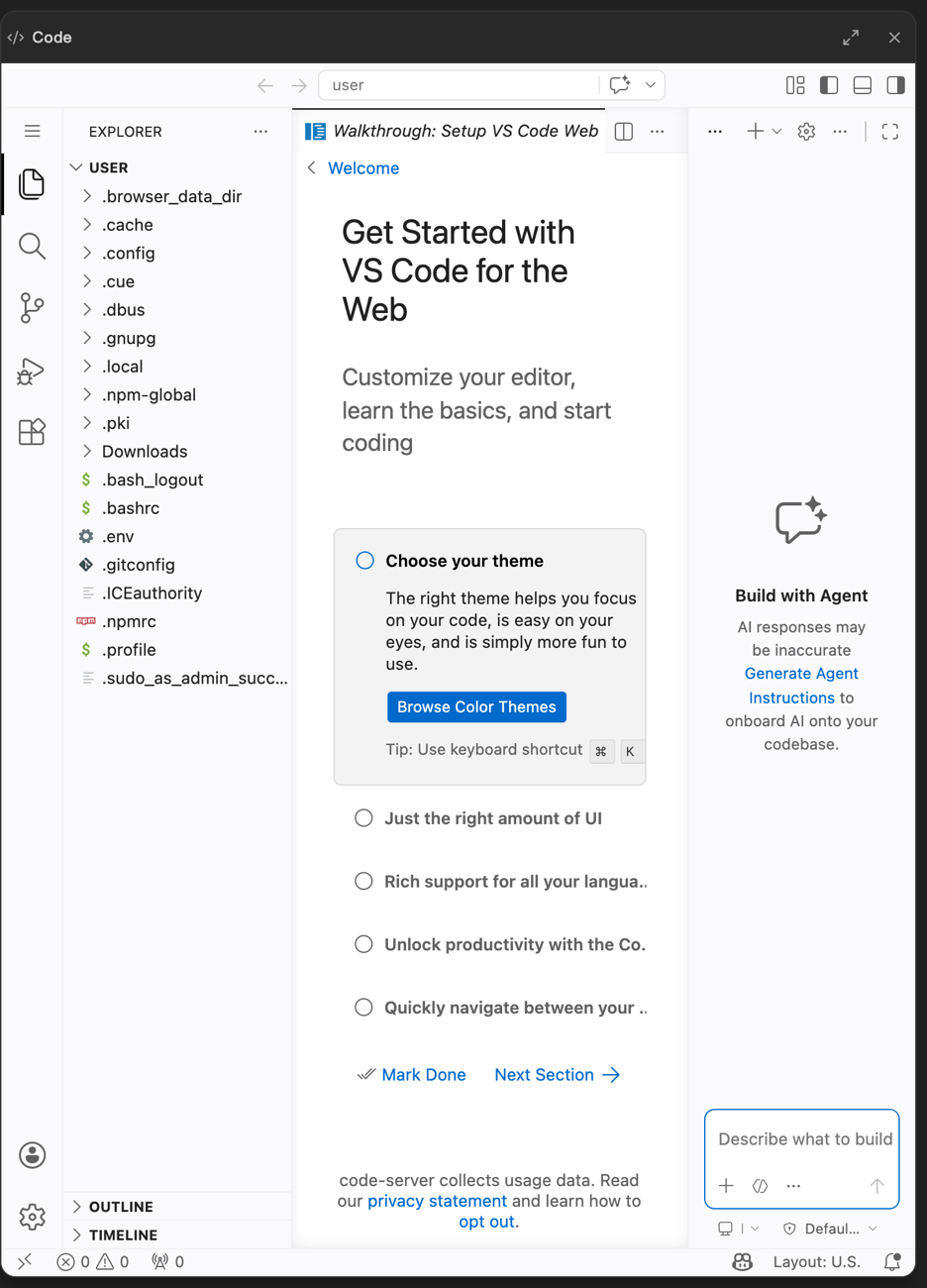
- The code view opens a full code editor in the browser, with the agent's home folder in the file list.
- Choose Settings → Computer, then the Computer button to open the agent's computer controls. You can also open the agent's details and choose Computer, even without a workspace. See Agent runtime and models.
See all your computers
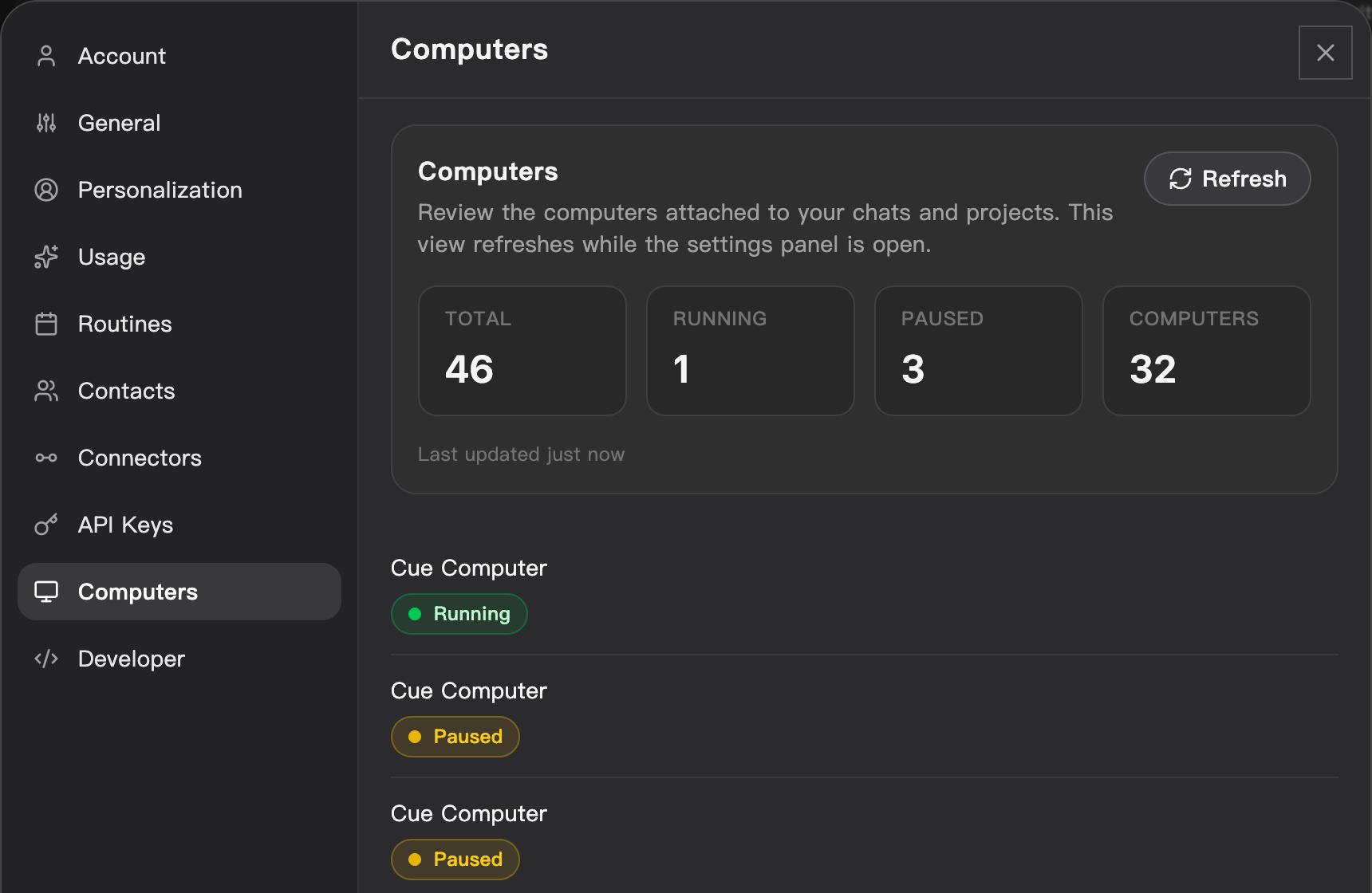
- Open Settings, then Computers.
- The top of the page counts your computers: Total, Running, Paused, and Computers. Choose Refresh to update it.
- Each row shows a computer and whether it is running or paused. Open a row's menu for Details, Pause, Resume, or Remove.
- Remove asks you to confirm: "This removes the runtime and deletes the computer record." Copy anything you need off the computer first.
On iPhone and Android
The iPhone and Android apps are coming; store review is pending. You can use Cue OS in your phone browser now. The steps on this page were checked in a desktop browser.
With Cue CLI
Cue CLI is installed during managed computer setup. New personal-agent computers normally sign into Cue as the agent; older or special computers can have a different recorded account. Native Codex and Claude Code need their own engine credentials, separate from that Cue sign-in.
The web cloud setup offers Cue and OpenClaw. The cloud computer software also includes Codex and Claude Code, and Cue CLI has engines for them. There is no guided app setup for those engines in the cloud yet; use your computer with Cue CLI for their setup flow. See Agent runtime and models for the controls each app offers.
- On the web, open the computer's terminal: Files, then More options, then Terminal.
- Check that the agent's Cue runtime is healthy:
cue status --runtime- List the agents on the computer. Managed personal-agent setup uses the name
main; check the list on older or custom computers:
cue agent listFrom your own computer, there is an advanced command, cue sandbox. It is hidden from cue commands, it is not in the command reference, and it may change. It needs --profile with the account that owns the computer:
cue --profile <account> sandbox list --json
cue --profile <account> sandbox exec <computer-id> -- pwd
Local development on a Mac
On Apple Silicon, build the image natively with the steps below. The published
GHCR desktop image targets linux/amd64; its Chromium has a
startup failure under Mac QEMU emulation
even with the seccomp option. The native arm64 base image passed browser and
debugger verification.
This setup is for contributors with access to the private Cue Computer repository. For setup on your own computer without repository access, use Cue CLI setup. The local desktop build needs Docker Desktop running and uv.
From the repository folder:
cd e2b
uv sync
uv run python ../desktop/build.py local-base
The base image includes the desktop, browser and editor. Install Cue CLI and any agent engine you want inside it; the image has no account login or agent.
Start it with the normal image entrypoint:
docker run -d --name cue-computer-base \
  --cpus=4 --memory=4096m \
  --security-opt seccomp=unconfined \
  --env CHROME_DEBUG_PROXY_ENABLED=true \
  -p 127.0.0.1:16080:6080 -p 127.0.0.1:18329:8329 \
  -p 127.0.0.1:19222:9222 \
  cue-computer-base
The seccomp option is needed for Chromium in local Docker.
CHROME_DEBUG_PROXY_ENABLED=true makes its debugger reachable from your Mac.
The host ports bind to Mac loopback. Other containers on the same Docker
network can reach the enabled debugger relay. Open http://localhost:16080/vnc.html for the desktop or
http://localhost:18329 for the editor; their password is in
/home/user/.env inside the container.
Open a shell as the desktop user, with its own home and working folder:
docker exec -it --user user --env HOME=/home/user --workdir /home/user \
  cue-computer-base bash -l
That shell runs as UID 1000 in /home/user. Use it for installing Cue CLI
and other tools so their settings belong to the same user as the desktop.
Check readiness from your Mac:
docker inspect --format '{{.State.Health.Status}}' cue-computer-base
curl -fsS http://127.0.0.1:19222/json/version
Health includes the desktop, editor, and browser debugger. The debugger port
controls the browser; keep its Mac binding on 127.0.0.1. Apple Silicon uses
Playwright Chromium; Intel builds use Ubuntu Chromium. Check the installed
version with chromium --version inside the user shell.
Remove the local container when finished. This deletes files saved inside it:
docker rm -f cue-computer-baseLimits today
- A computer pauses by itself after about 30 minutes without use. Opening it again resumes it; you will see Resume computer, Prepare workspace, and Reconnect agent, and the first reply can take longer.
- Some paused computers cannot be resumed. Cue then gives the agent a fresh computer. Files from the earlier computer are kept, but they are not copied into the new one.
- A computer can be ready while the agent is still connecting. If you see "Computer is ready, but the agent is still trying to connect.", wait, then send a short test message before you start real work.
- The desktop view may show a blank screen. Use Files and the code view instead.
- Remove cannot be undone.
- Running unattended for weeks at a time has not been proven.