DigitalOcean
Connect a DigitalOcean account so Cue OS can create servers there for Cue to work on, and remove that access.
Connect your DigitalOcean account to Cue OS so Cue can create servers, which DigitalOcean calls droplets, in your account and work on them. The card describes this as running a dedicated Cue computer in your DigitalOcean account. The servers run in your account, so DigitalOcean bills you for them.
What you can do
- Link a DigitalOcean account in Settings → Connectors and see which account is connected.
- Let an agent in Cue CLI run a helper task on a fresh droplet that is deleted when the task ends.
- Disconnect the account when no Cue servers are using it.
On the web
- Open Settings → Connectors and select DigitalOcean. The card reads "Run a dedicated Cue computer in your DigitalOcean account".
- The card lists 6 permission scopes: read your account, create, read, and delete droplets, and create and read SSH keys.
- Choose Connect to start a connection. According to the product code, this button has no DigitalOcean sign-in to open in this release, so expect "Failed to initiate connection". This was not tried live.
- When connected, DigitalOcean appears under Enabled connectors with the connected account.
- To remove it, open the card, choose Disconnect, and confirm. If Cue servers created with this connection are still running, Cue OS refuses and asks you to delete them first. Disconnecting does not cancel the authorization at DigitalOcean; review authorized apps in your DigitalOcean account settings as well.
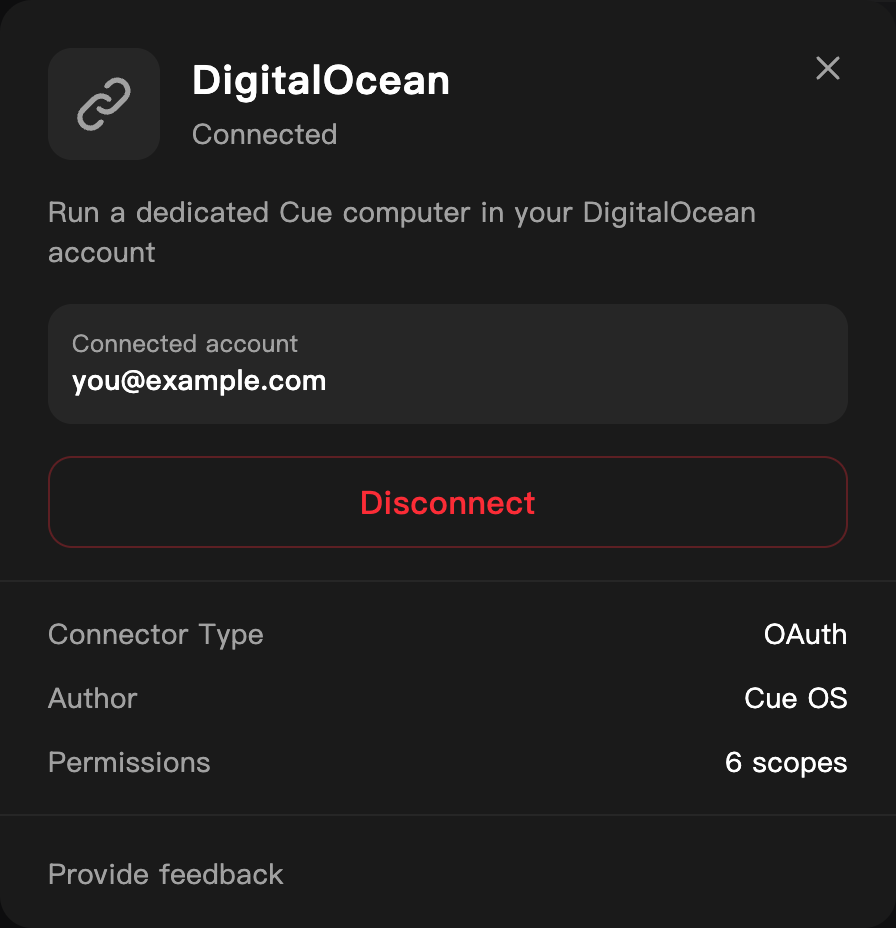
A dedicated QA account. The address is replaced with an example.
On iPhone and Android
The iPhone and Android apps are coming; store review is pending. You can use Cue OS in your phone browser now. Open Settings → Connectors and follow the web steps.
With Cue CLI
-
Check the connection:
cue integration listcue integration connect digitaloceanuses the same sign-in request as the web Connect button, so for a new connection it is expected to fail the same way. -
An agent can hand one task to a helper that runs on a fresh droplet in your account. The helper's result comes back to the agent, and the droplet is deleted afterwards. Creating a droplet alone takes over two minutes. This option works only when the agent was started with the connection configured, and the setting it needs is not shown by
cue integration listtoday. -
Remove the connection. Cue refuses while servers created with it are still running:
cue integration revoke digitalocean --json
See the command reference for every option.
Limits today
- There is no screen in Cue OS yet to create, see, or delete a Cue computer in your DigitalOcean account. Creating a server through this connection was not checked for this page.
- The connection can create and delete droplets in your account. DigitalOcean charges for the droplets while they exist.
- Disconnecting does not cancel the authorization at DigitalOcean.
- Starting a new connection from the card or
cue integration connectis expected to fail, based on the product code; it was not tried live. - Disconnecting was not walked end to end for this page; the steps follow the live card, which shows an existing connection, plus the product code.
Related
Extensions and integrations · Cue Computer · Cue CLI command reference