Discord
Message a Cue agent from Discord through a bot you create, set up with Cue CLI on your computer.
Cue OS lets you message a Cue agent from Discord. You create a Discord bot, and Cue CLI on your computer connects to it and answers as your agent. Only the people you add as owners can run the agent.
Looking for the Cue OS community server instead? Join the Cue OS Discord.
What you can do
- Send your bot a direct message and get Cue's reply in the same chat.
- Mention the bot in a server channel you choose.
- Decide who may run the agent: only owners you add on your computer.
On the web
There is no Discord setup screen in Cue OS on the web, and Discord is not listed in Settings → Connectors. Set it up with Cue CLI as shown below.
On iPhone and Android
The iPhone and Android apps are coming; store review is pending. You can use Cue OS in your phone browser now. Once the bot is set up, you can message it from the Discord app on your phone.
With Cue CLI
The bot runs in Cue CLI's background worker on the computer where your agent lives. These steps use the default agent, main.
-
In the Discord Developer Portal, choose New Application and give it a name.
-
Open Bot, choose Reset Token, and copy the token. Treat it like a password. On the same page, turn on Message Content Intent. Cue asks Discord for message content, so without it the bot cannot connect.
-
Open Installation. Under Installation Contexts, use Guild Install. Under Default Install Settings, add the
botandapplications.commandsscopes and at least the Send Messages permission. Open the install link and add the bot to your server. -
Save the token for the agent and turn on direct messages.
read -rswaits for you to paste the token without showing it; press Enter after pasting. Cue stores the token in its local credential file rather than in the agent settings:read -rs DISCORD_BOT_TOKEN cue config set agents.main.channels.discord.token "$DISCORD_BOT_TOKEN" --json cue config set agents.main.channels.discord.dm.policy open --json cue config set agents.main.channels.discord.enabled true --json -
Restart the background worker so it picks up the change, then check the connection:
cue client restart --agent main --json
cue --agent main channel status --provider discord --json
If the status says the channel runtime worker is unavailable, start it with
cue client start --agent main. -
In Discord, open the bot from your server's member list and send it a direct message. Until you are an owner, it replies "Access denied. Your discord user ID is your ID" and shows the command to run. Run it on your computer, then message the bot again:
cue --agent main channel owner add --provider discord <your-discord-user-id> -
To use the bot in a server channel, allow only yourself and one channel, and have it answer only when mentioned. To copy IDs, turn on Developer Mode in Discord's advanced settings, then right-click the channel or your name:
cue config set agents.main.channels.discord.group.policy allowlist --json
cue config set agents.main.channels.discord.group.allowFrom '["<your-discord-user-id>"]' --json
cue config set agents.main.channels.discord.channelIds '["<channel-id>"]' --json
cue config set agents.main.channels.discord.requireMention true --json
cue client restart --agent main --json
Keep the IDs in quotes inside the brackets, as shown. Without
requireMention, the bot answers every message from you in that channel; it is off by default. -
To turn the bot off, set
enabledtofalseand restart the worker. To cancel the token itself, reset it again on the Developer Portal's Bot page:cue config set agents.main.channels.discord.enabled false --json cue client restart --agent main --json
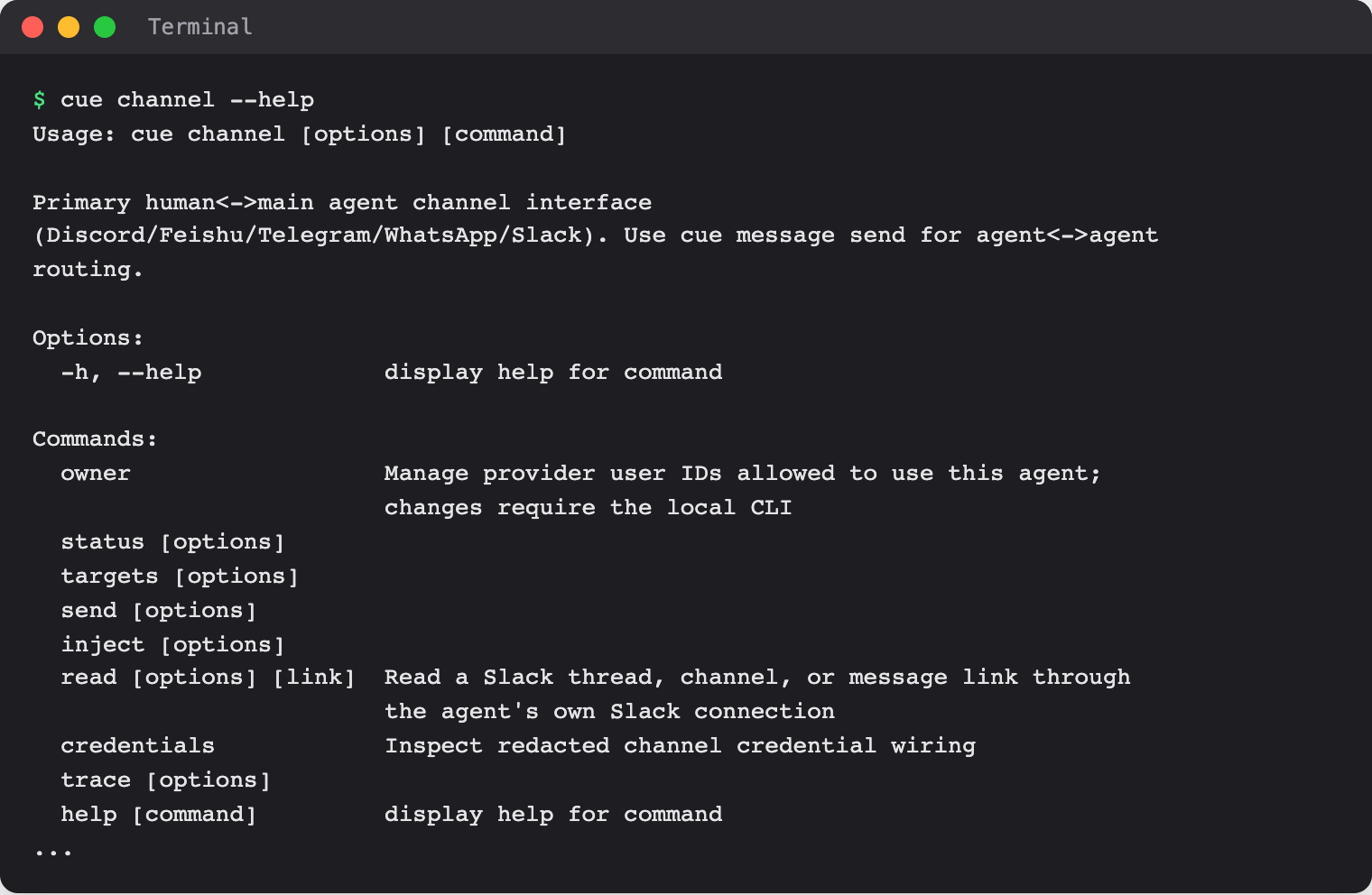
See the command reference for every option.
When Cue asks you first
The bot runs only for its owners. Anyone else who reaches it gets the "Access denied" reply and the agent does not run. In a server channel, that reply goes out at most once a minute. With direct messages open, anyone who shares a server with the bot can get that reply; to have Cue ignore strangers instead, allow only yourself:
cue config set agents.main.channels.discord.dm.policy allowlist --json
cue config set agents.main.channels.discord.dm.allowFrom '["<your-discord-user-id>"]' --json
cue client restart --agent main --json
Remove an owner with cue --agent main channel owner remove --provider discord <user-id>. Owner changes apply to the next message without a restart.
Limits today
- The bot runs only while your computer is on and Cue CLI's background worker is running.
- Replies include the model's reasoning text when the model returns any. To leave it out, run
cue config set agents.main.channels.discord.includeThinking false --jsonand restart the worker. - Creating a bot, a full message round trip, and turning the bot off were not walked end to end for this page. The steps follow Cue CLI's help and code; the Developer Portal steps follow Discord's portal and were not checked live.
- Cue CLI has no Discord command of its own. Discord settings are changed with
cue config set.
Related
Extensions and integrations · Slack · Telegram · OpenClaw on Discord · Cue CLI command reference