Gmail
Connect Gmail to Cue OS so Cue can read, search, send, and organize your email, and remove that access when you choose.
Connect your Gmail account to Cue OS and Cue can find a message, summarize a thread, draft and send a reply, or tidy your inbox. The connection uses Google's own sign-in, and you can disconnect it at any time.
What you can do
- Ask Cue to search and read your mail, for example "find the latest invoice from my bank".
- Send new email and reply in a thread from your own address.
- Archive, trash, star, mark read or unread, and label messages.
- Do the same from a terminal with
cue gmail.
On the web
- Open Settings → Connectors and select Gmail. The card reads "Read, search, send, and organize email from your Gmail account".
- Choose Connect. Google's sign-in opens in a pop-up. Pick the account and review the request: Cue OS asks for full access to your mail, which lets it read, send, and delete messages, and for your email address. That is the 2 permissions shown on the card.
- Back in Cue OS, Gmail appears under Enabled connectors with the connected address.
- To stop Cue using Gmail, open the card, choose Disconnect, and confirm.
If you connected Gmail earlier with send-only access, the list shows Needs Reconnect and the card shows Reconnect required. Choose Reconnect to grant read access, or Disconnect instead. Until then Cue can send from your address but cannot read your mail.
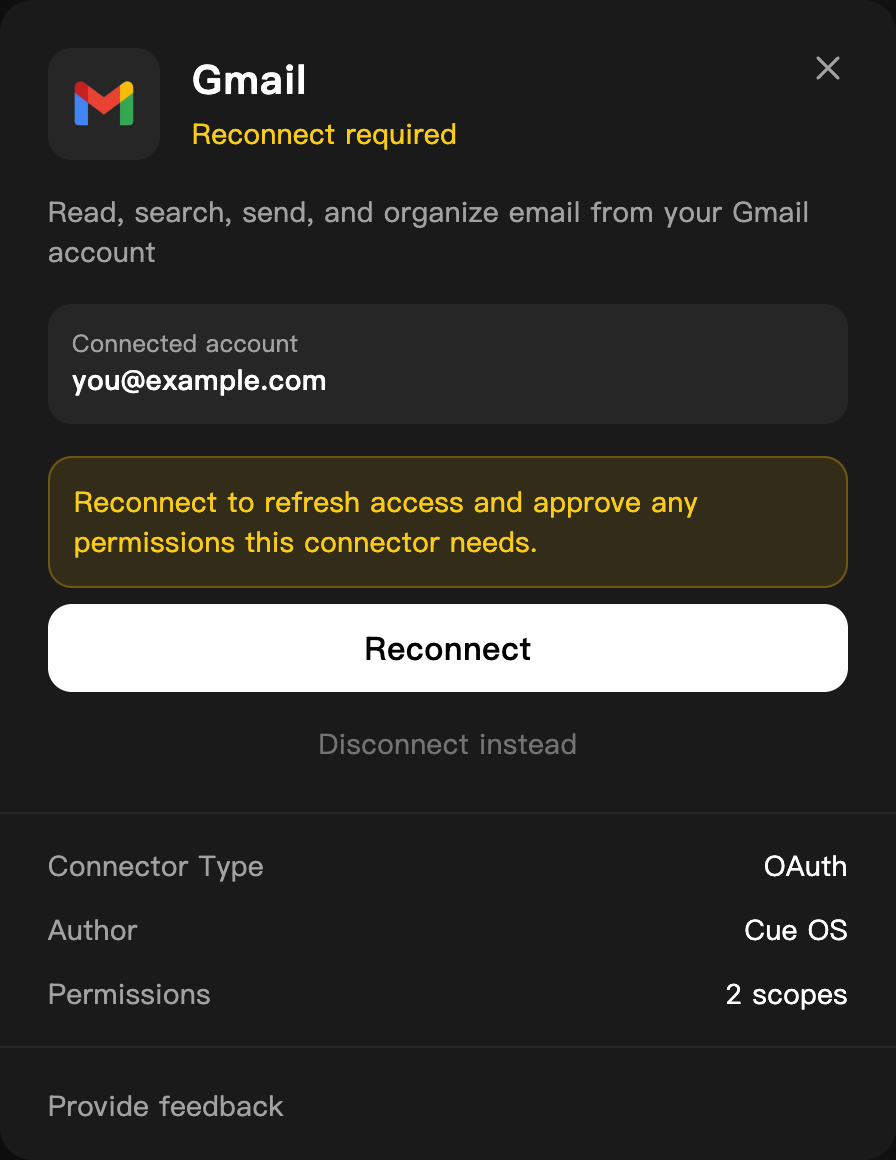
A QA account whose older Gmail connection can only send. The address is replaced with an example.
On iPhone and Android
The iPhone and Android apps are coming; store review is pending. You can use Cue OS in your phone browser now. Open Settings → Connectors and follow the web steps.
With Cue CLI
-
Check that Gmail is connected and which permissions it has:
cue integration listIf it is not connected, run
cue integration connect gmail, open the link it prints, approve, and list again. -
Read and search:
cue gmail inbox --limit 5 --query "is:unread" cue gmail search "from:billing subject:invoice" --limit 5 cue gmail read <message-id> -
Send or reply:
cue gmail send --to <address> --subject "Hello" --body "Hi there" cue gmail reply <message-id> --body "Thanks!" -
Organize:
cue gmail archive,trash,untrash,star,unstar,mark_read, andmark_unreadeach take a message ID.cue gmail labelslists your labels, andcue gmail label <message-id> --add <label-id>or--remove <label-id>changes them. Add--jsonto any of these for machine-readable output.
If the connection cannot read mail, the command stops and says so:

See the command reference for every option.
When Cue asks you first
If one of your agents, acting with its own agent account, tries to send, reply to, trash, or delete email for work that did not come from you, Cue OS puts an approval card in your direct chat with that agent, for example "Allow gmail — send for recipient?". Nothing is sent until you choose Approve. See When Cue asks you first.
Limits today
cue gmail deleteremoves a message permanently. Usetrashif you may want it back.- Connecting, disconnecting, and reconnecting Gmail were not walked end to end for this page; the steps follow the live screens up to Google's sign-in, plus the product code.
- A new connection asks for full mail access. There is no narrower choice on the web today.
- Agent accounts cannot get a raw Gmail token with
cue secret; they usecue gmail, which runs through Cue OS.
Related
Extensions and integrations · Google Calendar · Google Drive · Cue CLI command reference