Connect a LinkedIn account so Cue can read your profile and create, comment on, or delete posts, and remove that access.
Connect LinkedIn to Cue OS so Cue can read your LinkedIn profile and work with posts for you: publish a post, read one, list its reactions, comment, or delete a post. Posts and comments are public on LinkedIn under your name, so check the text before you approve.
What you can do
- Link a LinkedIn account in Settings → Connectors.
- Read your profile, a member's profile, a post, the reactions on a post, and the organizations where you have a role.
- Create a post, comment on a post, or delete a post.
- Run the same actions from a terminal with
cue skill call linkedin. - Disconnect LinkedIn when you no longer want Cue to use it.
On the web
- Open Settings → Connectors and select LinkedIn under Add connectors. The card reads "View your LinkedIn profile and manage posts" and lists 3 permission scopes: sign-in, profile, and email.
- Choose Connect. LinkedIn's sign-in opens in a pop-up, through a sign-in service Cue OS uses for LinkedIn.
- Back in Cue OS, LinkedIn appears under Enabled connectors.
- To remove it, open the card, choose Disconnect, and confirm. Cue OS deletes the connection and asks the sign-in service that holds it to delete it too.
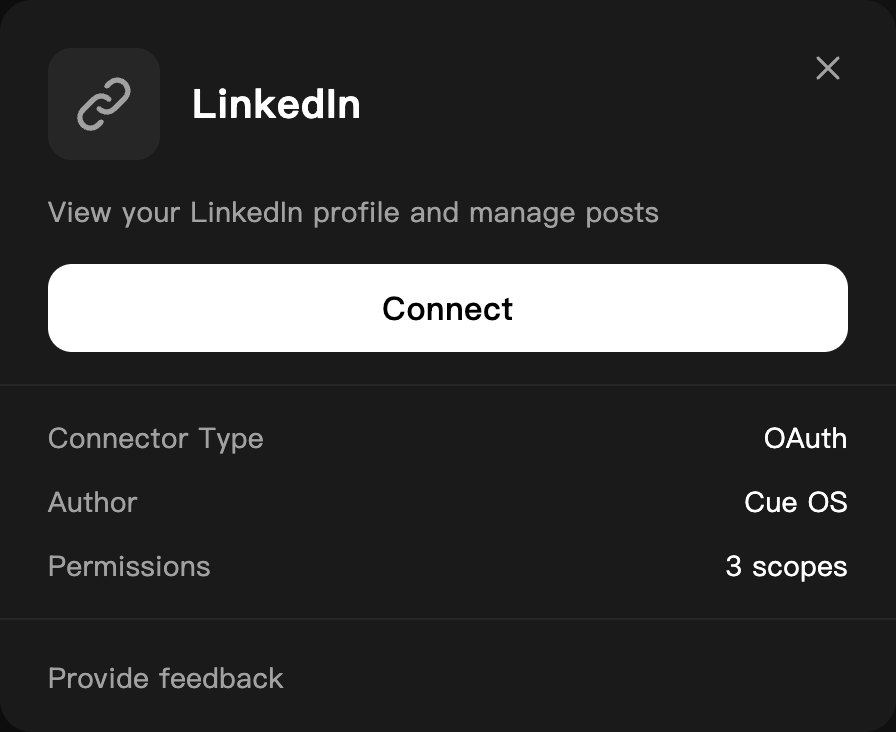
The LinkedIn card before connecting, on a dedicated QA account.
On iPhone and Android
The iPhone and Android apps are coming; store review is pending. You can use Cue OS in your phone browser now. Open Settings → Connectors and follow the web steps.
With Cue CLI
Cue CLI has no LinkedIn command of its own. LinkedIn actions run through Cue's LinkedIn skill, and you manage the connection with cue integration. The provider ID is composio_linkedin.
-
Connect, or check the connection. If it is not connected, the first command prints a link; open it, approve, and list again:
cue integration connect composio_linkedin cue integration list -
See the actions and the details each one needs:
cue skill read linkedin -
Read your profile. The result includes your person ID, which posting and commenting need:
cue skill call linkedin my_infoWithout a connection, this fails with "LinkedIn is not connected for this account. Connect it in Integrations before using this skill."
-
Create a post. It is public as soon as it succeeds:
cue skill call linkedin create_post '{"author":"urn:li:person:<person-id>","commentary":"Post text"}'get_post,list_reactions,comment,delete_post,get_person, andget_companywork the same way;cue skill read linkedinshows their details. -
Remove the connection:
cue integration revoke composio_linkedin --json
See the command reference for every option.
When Cue asks you first
If one of your agents, acting with its own agent account, tries to create a post, comment, or delete a post for work that did not come from you, Cue OS puts an approval card in your direct chat with that agent, for example "Allow linkedin — create post?". Nothing is posted until you choose Approve. Reading your profile or a post does not ask. See When Cue asks you first.
Limits today
- The card lists sign-in, profile, and email permissions only. Whether LinkedIn's sign-in also grants posting was not checked, so creating a post or comment may fail even with a connection.
- Connecting, disconnecting, and every LinkedIn action were not walked end to end for this page. The steps follow the live card up to LinkedIn's sign-in,
cue skill read linkedin, the not-connected message above, and the product code. - Asking Cue for LinkedIn actions in chat was not tried for this page.
- There is no screen for picking which LinkedIn posts or pages Cue may reach; the connection covers what your LinkedIn account allows.
Related
Extensions and integrations · X · Skills · Cue CLI command reference