Slack
Talk to a Cue agent from Slack with your own Slack app, and see what the managed Slack connection in Cue OS does today.
Cue OS offers Slack in two ways. A Slack bot lets you message a Cue agent in Slack; it runs through Cue CLI on your computer and uses a Slack app you create. The Slack connector in Settings → Connectors links a Slack workspace to your Cue OS account through Cue's own Slack app. Today the bot is the part that lets you talk to Cue from Slack.
What you can do
- Message a Cue agent in a Slack direct message, or mention it in a channel, and get the reply in a thread.
- Choose who may use it: only the people you add as owners can run the agent.
- Link a Slack workspace in Settings → Connectors, see its permissions, and disconnect it.
On the web
- Open Settings → Connectors and select Slack under Add connectors. The card reads "Read channels, post messages, and manage reactions in connected workspaces" and lists 10 permission scopes.
- Under One-click managed Slack, choose Connect with Slack. Slack's sign-in opens in a pop-up, where you pick the workspace and approve Cue's Slack app.
- Back in Cue OS, Slack appears under Enabled connectors with the connected account.
- To remove it, open the card, choose Disconnect, and confirm. Cue OS also asks Slack to cancel the access token.
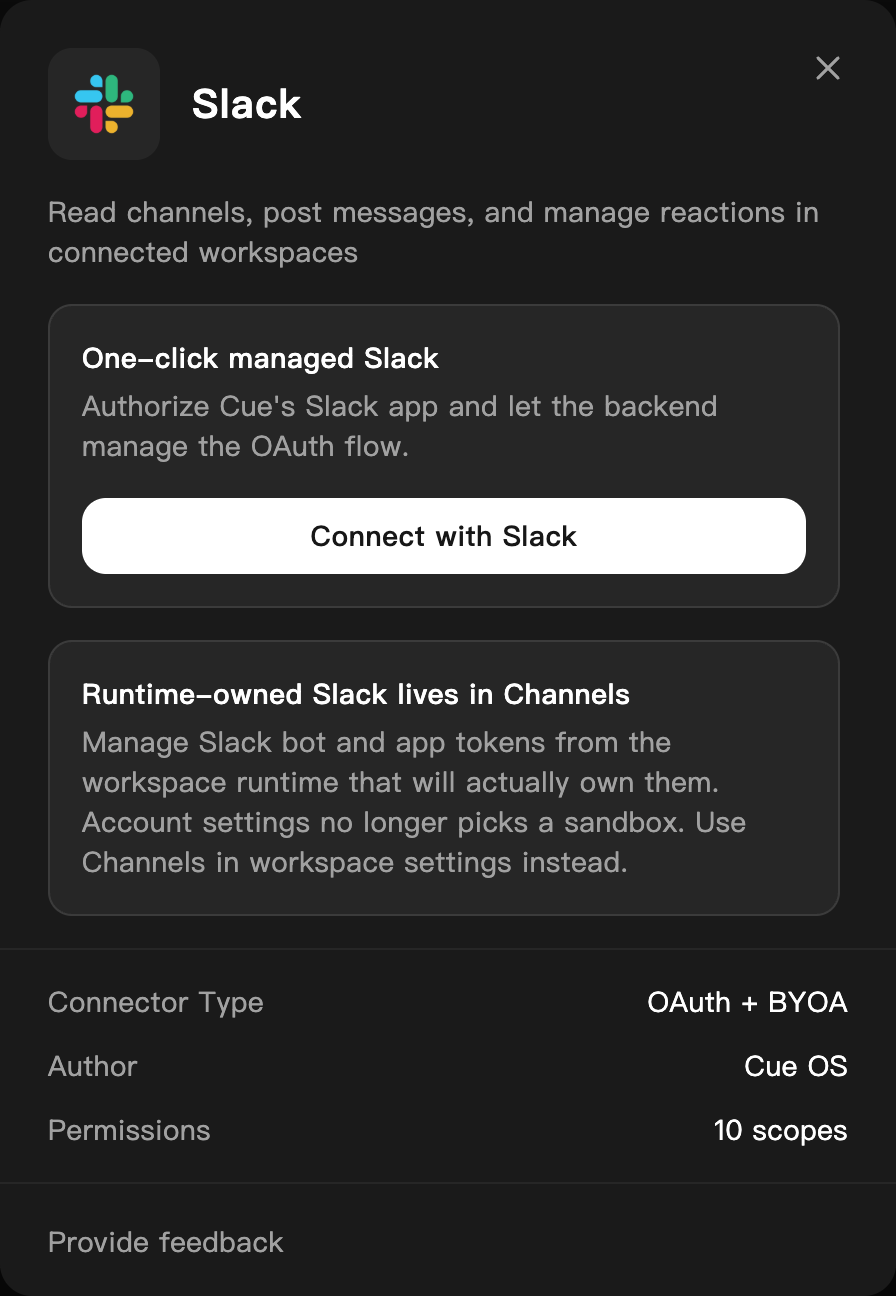
The Slack card before connecting, on a dedicated QA account.
The card's second box says bot and app tokens are managed from Channels in workspace settings. That screen is not available on the web today; set up a Slack bot with Cue CLI as shown below.
On iPhone and Android
The iPhone and Android apps are coming; store review is pending. You can use Cue OS in your phone browser now. Open Settings → Connectors and follow the web steps. Once a Slack bot is set up, you can message it from the Slack app on your phone.
With Cue CLI
The Slack bot runs in Cue CLI's background worker on the computer where your agent lives. These steps use the default agent, main.
-
Turn on Slack support, which is off by default:
cue plugin enable slack -
In Slack, create an app for your workspace and turn on Socket Mode. Create an app-level token with the
connections:writescope; it starts withxapp-. Add bot scopes such aschat:write,im:history,im:read,app_mentions:read,channels:history,groups:history, andreactions:write, and subscribe to the bot eventsmessage.im,app_mention,message.channels, andmessage.groups. Allow messages in the app's Messages tab, then install the app and copy the bot token, which starts withxoxb-. -
Save both tokens for the agent.
read -rskeeps each token out of your screen and shell history, and Cue stores it in its local credential file rather than in the agent settings:read -rs SLACK_BOT_TOKEN cue config set agents.main.channels.slack.botToken "$SLACK_BOT_TOKEN" --json read -rs SLACK_APP_TOKEN cue config set agents.main.channels.slack.appToken "$SLACK_APP_TOKEN" --json -
Turn the bot on for direct messages and check the bot token with Slack:
cue --agent main slack setup --dm-policy open --validate --jsonTo use it in a channel too, add
--channel-id <channel-id>and invite the bot to that channel. In channels the bot answers only when mentioned, unless you pass--require-mention false. -
Restart the background worker so it picks up the change, then check the connection:
cue client restart --agent main --json cue --agent main slack status --validate --json cue --agent main channel status --provider slack --json -
Send the bot a direct message in Slack. Until you are an owner, it replies "Access denied. Your slack user ID is your ID" and shows the command to run. Run it on your computer, then message the bot again:
cue --agent main channel owner add --provider slack <your-slack-user-id>
To turn the bot off, run cue --agent main slack disable --json and restart the worker. See the command reference for every option.
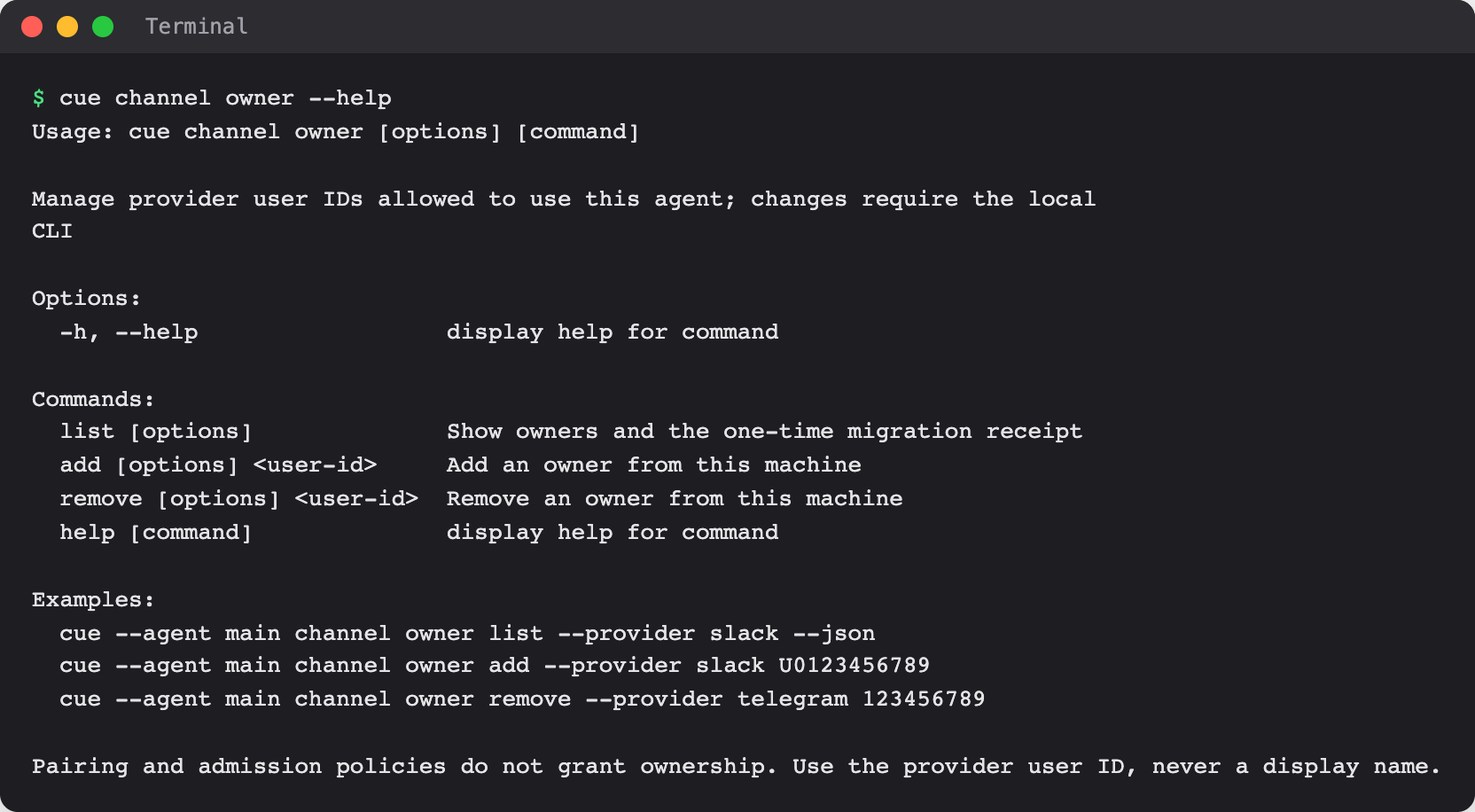
When Cue asks you first
The bot runs only for its owners. Anyone else who messages it gets the "Access denied" reply and the agent does not run. In a channel, that reply goes out at most once a minute. Add another person with cue --agent main channel owner add --provider slack <their-user-id> only if you want them to run the agent on your computer.
Limits today
- The managed Slack connector does not start a Slack bot today. The bot needs both a bot token and an app token, and the managed connection supplies only the bot token. This page could not confirm any other Cue feature that uses the managed connection. Person accounts can read its token for their own scripts with
cue secret slack. - The Channels screen the Slack card points to is not available on the web.
- The bot runs only while your computer is on and Cue CLI's background worker is running.
- Creating a Slack app, connecting, disconnecting, and a full message round trip were not walked end to end for this page. The steps follow Cue CLI's help and code, and the live connector card up to Slack's sign-in.
- The Slack scopes and events above are a starting set taken from Cue CLI's Slack reference. Slack's own app settings decide the final list.
Related
Extensions and integrations · Discord · Telegram · Cue CLI command reference