OpenClaw
Run your agent on the OpenClaw engine inside its Cue Computer, choose how it signs in to models, and switch back to Cue.
OpenClaw is a separate agent engine that Cue OS can run inside an agent's Cue Computer, in place of Cue, the built-in engine. You turn it on from the agent's settings; Cue OS sets it up on the computer and sends your chat messages to it. You choose which credentials and default model OpenClaw uses. You can also connect a separately configured OpenClaw agent on your own computer through Cue CLI.
What you can do
- Switch a cloud agent's engine from Cue to OpenClaw on the web, without a terminal.
- Let Cue handle model access with no key of your own, or use your own Anthropic or OpenAI API key, or sign in with Codex.
- Choose OpenClaw's default model.
- Check OpenClaw from the computer's terminal with
cue openclaw. - Switch the agent back to Cue.
- Set OpenClaw up by hand, or connect it to a chat platform, with the setup pages.
On the web
Turn on OpenClaw
- Open Chat, then Agents, and choose an agent that has a cloud computer. To create one, see Cue Computer.
- Open the agent's details and choose Computer. From its workspace, choose Settings → Computer, then the Computer button.
- Under Where the agent runs, choose Cloud computer.
- Under Agent engine, choose OpenClaw. Setup starts right away. Wait until it finishes.
- When setup is done, the OpenClaw row shows Credentials (Cue managed at first), a Configure button, and Default model.
When you create an agent, Advanced also has an Install OpenClaw switch. The steps on this page start from an existing agent instead.
Choose credentials
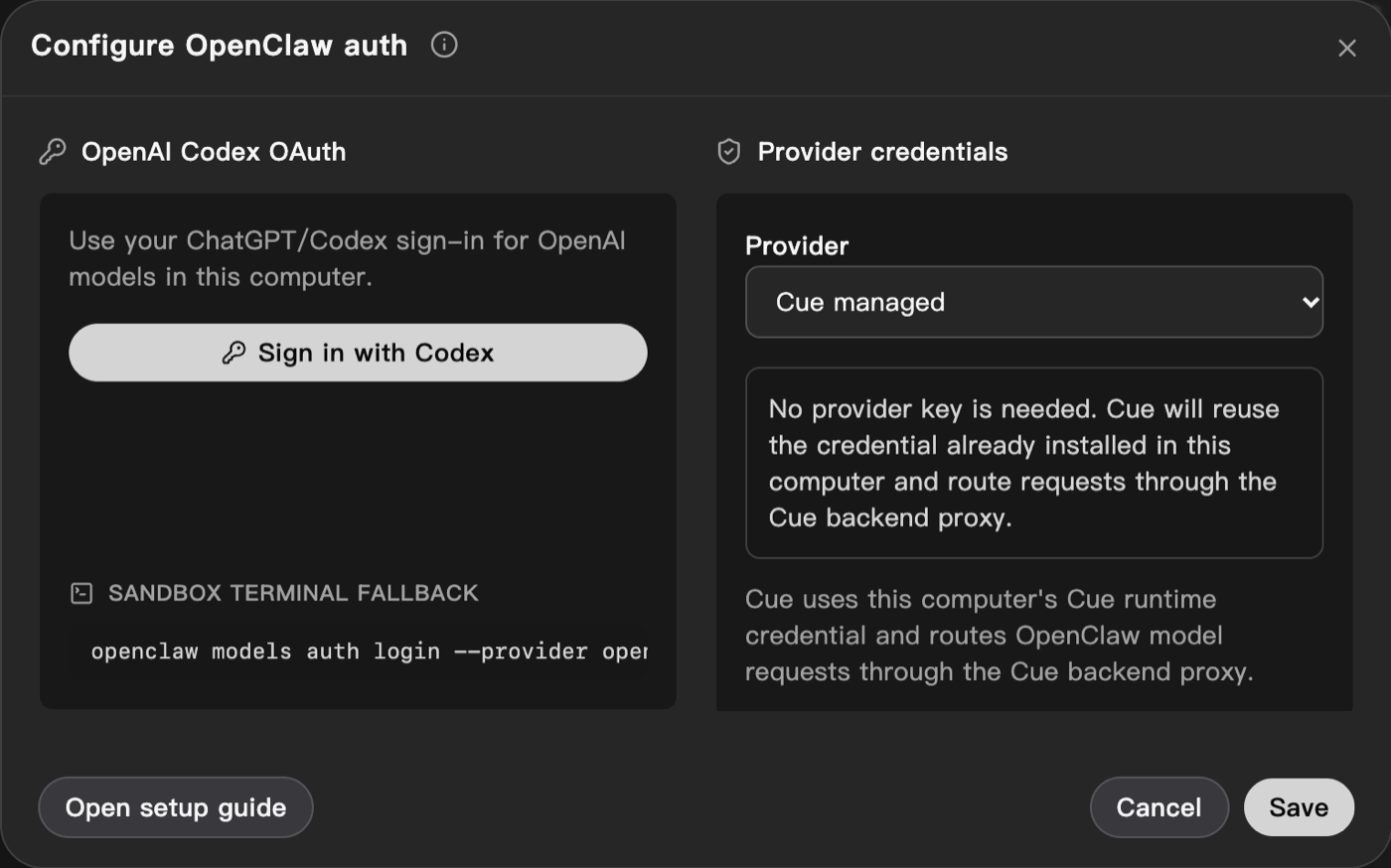
- Choose Configure. The Configure OpenClaw auth dialog opens.
- Under Provider credentials, choose a Provider:
- Cue managed: no key is needed. OpenClaw uses the computer's own Cue sign-in, and Cue sends its model requests.
- Anthropic or OpenAI: paste your API key. The key is applied to OpenClaw on this computer. This action does not save an account-wide connection or automatically configure other computers.
- To use your Codex sign-in for OpenAI models instead, choose Sign in with Codex. The dialog shows a code; open the OpenAI sign-in page, sign in, and enter the code. The Sandbox terminal fallback box shows the same sign-in as a command you can run in the computer's terminal:
openclaw models auth login --provider openai-codex --set-default- If OpenClaw on this computer already has credentials, choose Detect from computer to find and reuse them.
- Choose Save, or Cancel to leave things as they were. Open setup guide opens Model auth.
Choose a default model
Choose a default model from the list in the Default model row. The list depends on your credentials.
Check that it answers
- Send the agent a short message, such as "Reply with the word OK".
- While it works, the chat shows "Processing with OpenClaw...". A reply can take about 20 seconds.
- Settings may show Computer not connected while OpenClaw is replying. If the reply arrives, you can ignore it.
Switch back to Cue
- In Computer, under Agent engine, choose Cue (default).
- Send a short test message. If the chat still shows "Processing with OpenClaw...", open the computer's terminal (Files, then More options, then Terminal) and run:
cue openclaw unbind --cue-agent mainThe next message is handled by Cue.
On iPhone and Android
The iPhone and Android apps are coming; store review is pending. You can use Cue OS in your phone browser now. In test builds, iPhone can select OpenClaw on an online worker that already advertises a named OpenClaw binding. They do not provide the web installation/auth wizard. The Android app has no manual engine picker; use the web controls for setup.
With Cue CLI
Cue CLI on the Cue Computer talks to OpenClaw there. Open the computer's terminal (Files, then More options, then Terminal) and run these commands.
- Check that Cue CLI can reach OpenClaw. Look for
"connected": true:
cue openclaw status --json- List OpenClaw's conversations:
cue openclaw sessions --json- Ask OpenClaw for a reply directly. It should answer
OK:
openclaw agent --agent main --message "Reply with OK only"- Hand the agent back to Cue:
cue openclaw unbind --cue-agent main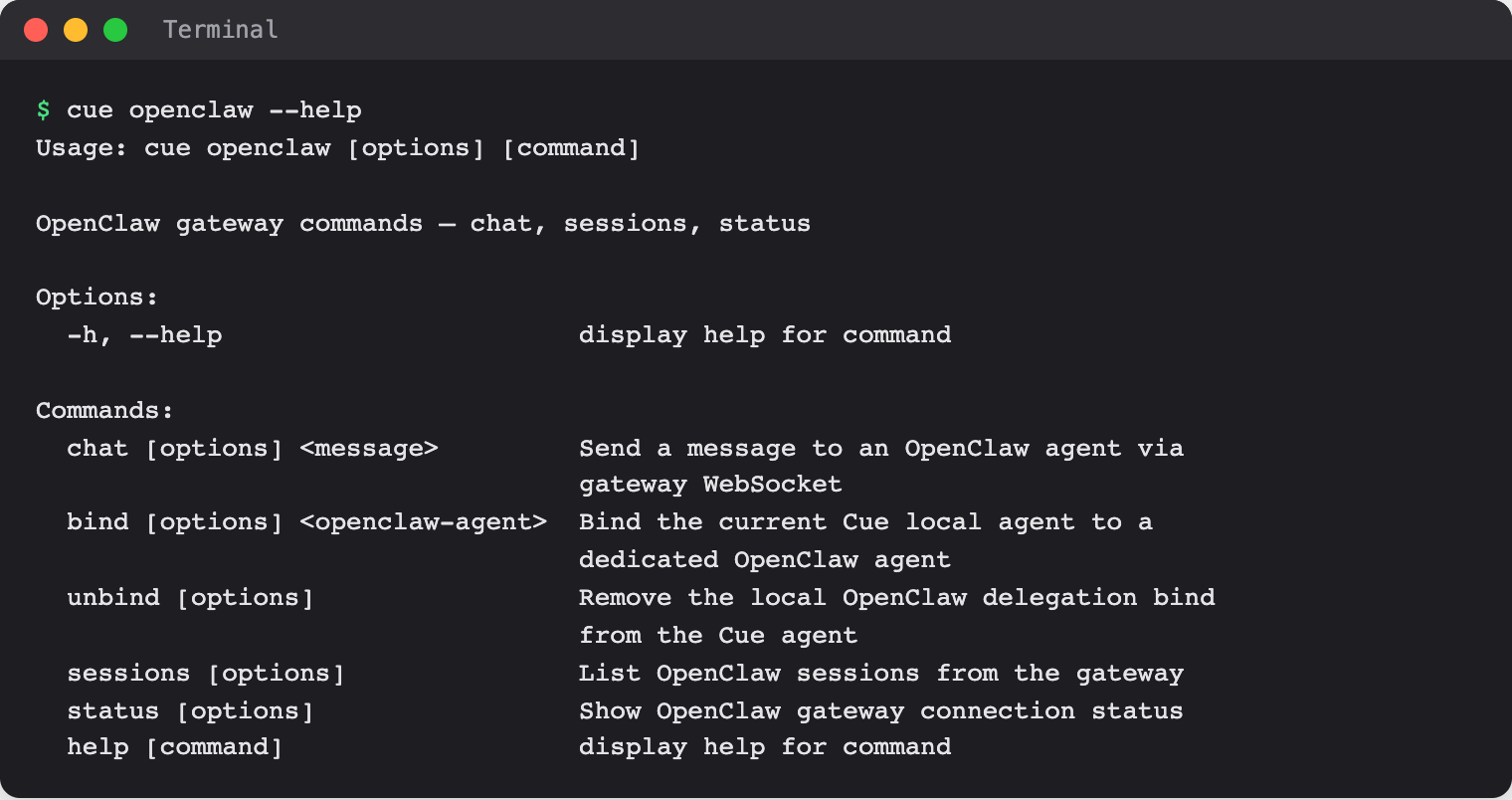
Limits today
- OpenClaw can run on a Cloud computer or Your computer. For your computer, install/configure OpenClaw and its gateway first, then choose its existing agent in the web local engine controls or bind it with Cue CLI. The computer and gateway must be running. This local connection has not been walked end to end for this guide.
- Choosing Cue (default) again in settings may not switch the computer back. Use
cue openclaw unbind --cue-agent mainas shown above. - Computer not connected can show in settings while OpenClaw is replying.
- With Cue managed, OpenClaw can fail with an error saying the model provider "is currently unavailable through Cue", even while Cue itself answers normally. Try again later.
- The models in Default model depend on your credentials and can change.
- These steps were checked with Cue managed credentials. The API key and Codex sign-in options were not tested for this page.
- Connecting OpenClaw to Discord, Telegram, WhatsApp, or Feishu is manual and has not been checked end to end. On current Cue computers, OpenClaw shows its Discord, WhatsApp, and Feishu plugins as not installed, and blocks its Telegram plugin because of its folder permissions. To reach Cue from a chat app, use Cue's own connections: Discord, Telegram, WhatsApp, or Feishu and Lark.
- iPhone selection requires an existing connected worker and OpenClaw binding; setup and model auth remain separate.
- Running unattended for weeks at a time has not been proven.