Images
Create a picture from a description, or change an image you already have.
Images in Imagine turn a description into a picture on Cue OS. You can also attach a picture and describe what to change, or use it as a guide for a new one. It works on the web and in Cue CLI, so Cue can make images for you too.
What you can do
- Create illustrations, product photos, characters, and scenes from a description.
- Attach an image and change part of it, such as its color or background.
- Choose the shape of the result and the model that makes it.
- Keep refining a result in the same image conversation.
On the web
- Open Generate → Image.
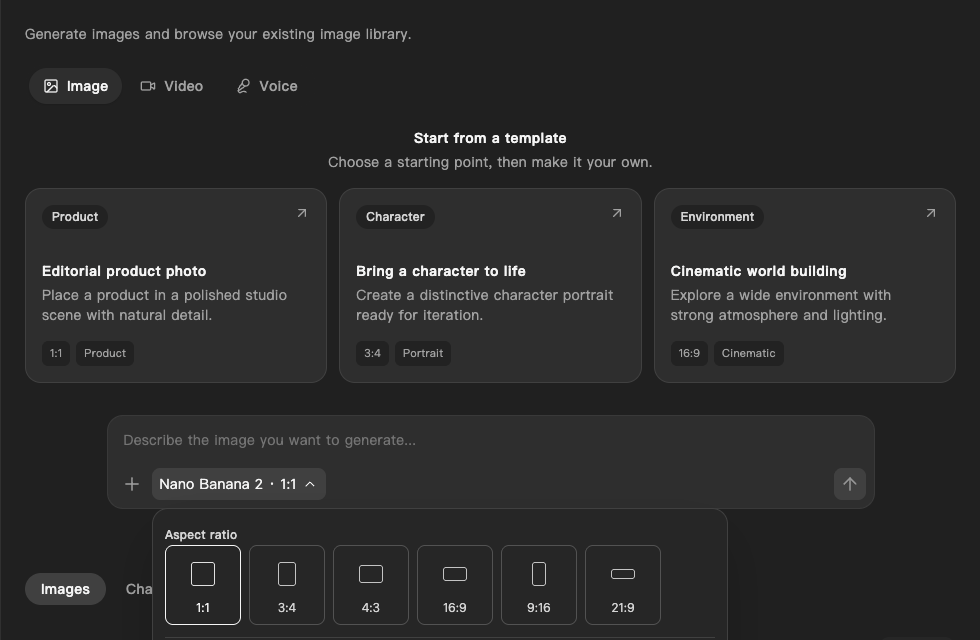
- Choose a template to start from: Product (square), Character (portrait), or Environment (wide). Or type in Describe the image you want to generate…
- To edit a picture or guide the result, select + (Attach reference images) and pick the file. Then describe the change, for example "make the mug blue, keep everything else the same".
- Select the settings button under the box. It shows the current model and shape, such as 1:1. Choose an aspect ratio (1:1, 3:4, 4:3, 16:9, 9:16, or 21:9) and a model. Models are grouped by maker; Cue's own are Cue Image 1, Cue Image 2, and Cue Image Edit 1.
- Select the arrow (Generate image).
- The result appears at the top of the Jobs list. Select Refresh if it is still working, switch between List and Grid, and select an image to see it full size. Chats keeps the image conversations you start here.
On iPhone and Android
The iPhone and Android apps are coming; store review is pending. You can use Cue OS in your phone browser now. Generate → Image shows the same templates and settings on a phone screen.
With Cue CLI
-
Set up Cue CLI and sign in. See the models on offer, their cost in credits, and which can edit (marked
edit):cue image --list-models -
Create a picture:
cue image "a watercolor herb garden on a windowsill" -o garden.png -
Edit a picture on your computer. Add
--model <model-id>to pick a model markededit:cue image "make the mug blue, keep everything else the same" --image mug.png -o blue-mug.png -
Guide a new picture with a reference, or build on your last result:
cue image "the same mug on a picnic table" --reference mug.png -o picnic.png
cue image "the same garden in evening light" --continue
The line marked [default] in the model list is used when you do not choose one. It can differ from the default on the web.
Useful options
| Option | What it does |
|---|---|
--model <model> | Choose a model from the list. |
--aspect-ratio <ratio> | Ask for a shape, such as 1:1 or 16:9, when the model supports it. |
--resolution <value>, --size <value> | Ask for a size the model supports. |
--image <path> | The picture to edit. |
--reference <path> | A picture to guide the result. Repeat it where the model allows. |
-o, --output <path> | Where to save the result. |
--continue | Build on the last image conversation. |
--force-new | Start fresh. This is the default and wins over --continue. |
--json | Output for scripts. |
To pay per image from a USDC wallet instead of credits, see Pay for services.
Limits today
- Creating and editing images through Cue works on the web and in Cue CLI without a separate key from a model maker.
- Edits can take a few minutes, and an edited image can come back at a different size from the one you supplied.
- Not every model accepts every shape, size, or reference.
- A new command starts fresh unless you add
--continue. - Cue CLI can also use other installed image services, and some need their own key.
cue plugin capabilities --family imagelists them.
Related
Cue CLI on cueos.ai · Imagine · Video · Voice · Pay for services · cue image reference